What Is Schema Markup?
Schema markup is structured data added to your website.
It tells search engines what your page is actually about.
For example:
- An article
- A product
- A local business
- An FAQ page
- An event
- A recipe
Google recommends JSON-LD as the preferred format for structured data.
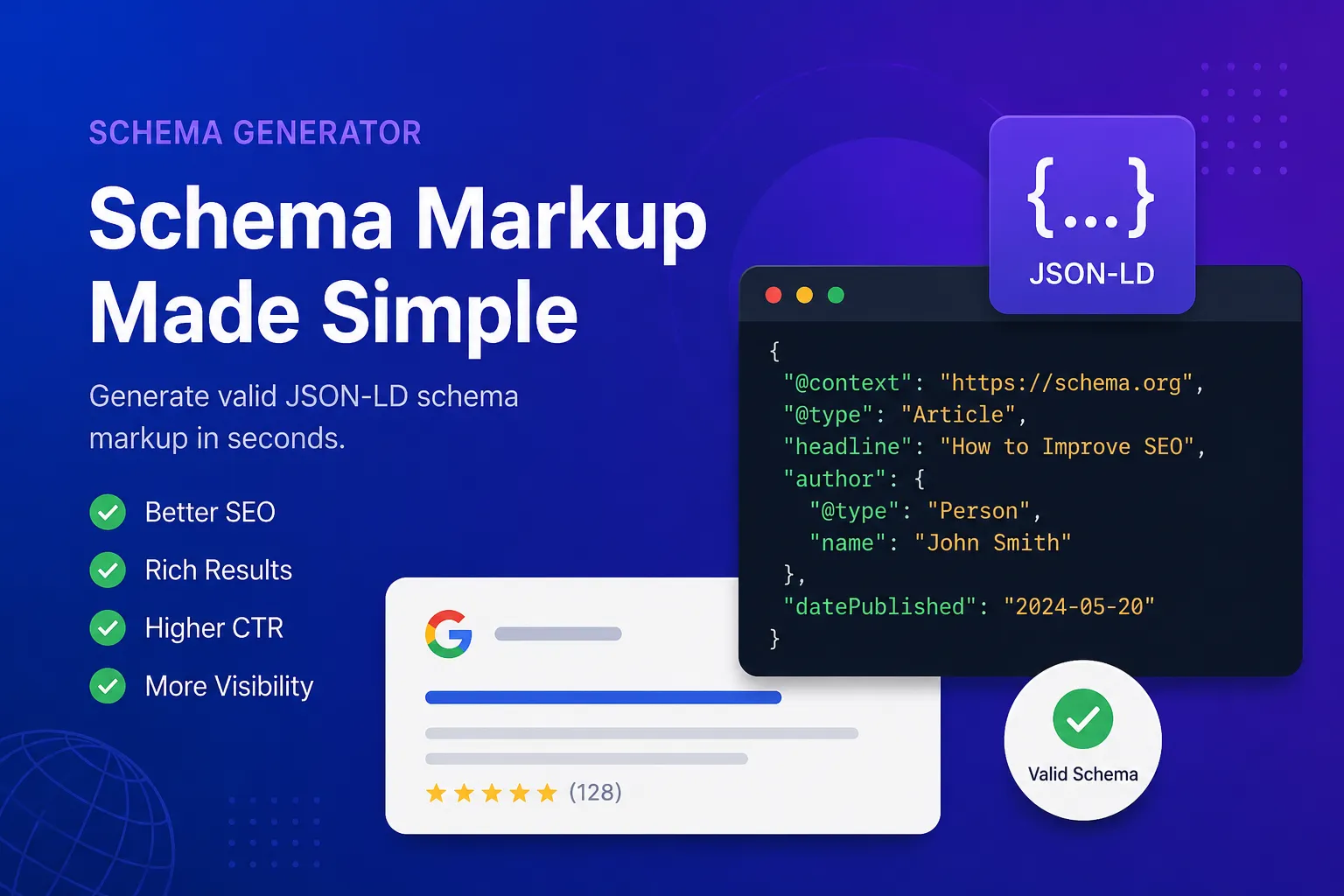
Here’s a simple example:
{ "@context": "https://schema.org", "@type": "Article", "headline": "How to Improve SEO", "author": { "@type": "Person", "name": "John Smith" }}
Search engines read this code to better understand your content.
Why Schema Matters for SEO
Schema markup does not magically push your site to #1.
But it can improve how your pages appear in search results.
That usually means:
- Better visibility
- Higher click-through rates
- More trust from users
- Rich snippets in Google
Many SEO tools and experts report noticeable CTR improvements from rich results.
And with AI-powered search becoming more common, structured data is becoming even more important.
What the SimpleClickLab Schema Generator Does
The tool helps you create valid JSON-LD schema without writing everything manually.
You choose a schema type, fill in the fields, and copy the generated code.
That’s it.
No plugins required.
No coding experience needed.
Common Schema Types You Can Generate
Most websites only need a few schema types.
Article Schema
Best for:
- Blog posts
- News articles
- Tutorials
It helps Google understand authors, headlines, dates, and images.
FAQ Schema
Perfect for FAQ sections.
This can sometimes display expandable questions directly in Google search results.
Product Schema
Useful for ecommerce stores.
You can include:
- Prices
- Availability
- Ratings
- Reviews
Local Business Schema
Important for local SEO.
You can add:
- Business name
- Address
- Phone number
- Opening hours
How-To Schema
Good for tutorials and step-by-step guides.
Especially useful for DIY, cooking, repair, and educational content.
Why JSON-LD Is Better
Older schema formats like Microdata are harder to maintain.
JSON-LD is cleaner because it sits separately inside a script tag.
That means:
- Easier editing
- Fewer errors
- Faster implementation
- Cleaner HTML
Most modern SEO tools use JSON-LD for this reason.
How to Use the Tool
Using the generator is simple.
Step 1: Choose a Schema Type
Pick the format that matches your page.
Example:
- Article
- FAQ
- Product
- Event
- Organization
Step 2: Fill in the Details
Add your information.
Usually things like:
- Title
- Description
- URL
- Author
- Images
- Ratings
Step 3: Copy the Generated Code
The tool instantly creates JSON-LD markup.
Copy it.
Step 4: Paste It Into Your Website
Add the code inside your page HTML.
Most people place it in:
<head>
or before the closing:
</body>
tag.
Always Validate Your Schema
Even good generators should be tested.
After generating markup, run it through Google’s Rich Results Test.
This helps you catch:
- Missing fields
- Invalid formatting
- Unsupported properties
Small errors can stop rich results from appearing.
Who Should Use a Schema Generator?
Pretty much everyone with a website.
Especially:
- Bloggers
- SEO specialists
- Ecommerce stores
- SaaS companies
- Agencies
- Local businesses
- Affiliate marketers
If you publish content online, structured data helps search engines understand it faster.
Common Mistakes to Avoid
Adding Fake Reviews
Google may ignore or penalize misleading structured data.
Using the Wrong Schema Type
Don’t use Product schema on a blog article.
Match schema to the actual page content.
Forgetting Required Fields
Some schema types require specific properties.
Missing them can invalidate the markup.
Copying Old Examples
Schema standards change over time.
Always use updated generators and validate your output.
Final Thoughts
Schema markup used to feel technical.
Now it takes a few minutes.
The SimpleClickLab Schema Generator makes the process simple enough for beginners while still being useful for advanced SEO work.
If you want better search visibility without installing heavy plugins or writing raw JSON-LD by hand, it’s a solid option.
FAQ
•What is schema markup?
Schema markup is structured data added to a website to help search engines better understand the content of a page.
•What is JSON-LD?
JSON-LD is a format used to add structured data to websites. Google recommends it because it is easier to maintain and keeps schema separate from the HTML content.
•Why is schema markup important for SEO?
Schema markup can improve how pages appear in search results by enabling rich snippets such as ratings, FAQs, product information, and event details.
•What does the SimpleClickLab Schema Generator do?
The SimpleClickLab Schema Generator helps users create valid JSON-LD schema markup without writing code manually.
•What schema types can be generated with the tool?
The tool can generate schema for articles, FAQs, products, local businesses, events, organizations, and other common structured data types.
•How do I add generated schema markup to my website?
Copy the generated JSON-LD code and paste it into your website HTML, usually inside the head section or before the closing body tag.
•Should schema markup be validated?
Yes. It is recommended to test schema markup using Google's Rich Results Test to make sure there are no formatting or validation errors.
•Can schema markup improve Google rankings?
Schema markup does not directly improve rankings, but it can increase visibility and click-through rates by enhancing search result appearance.