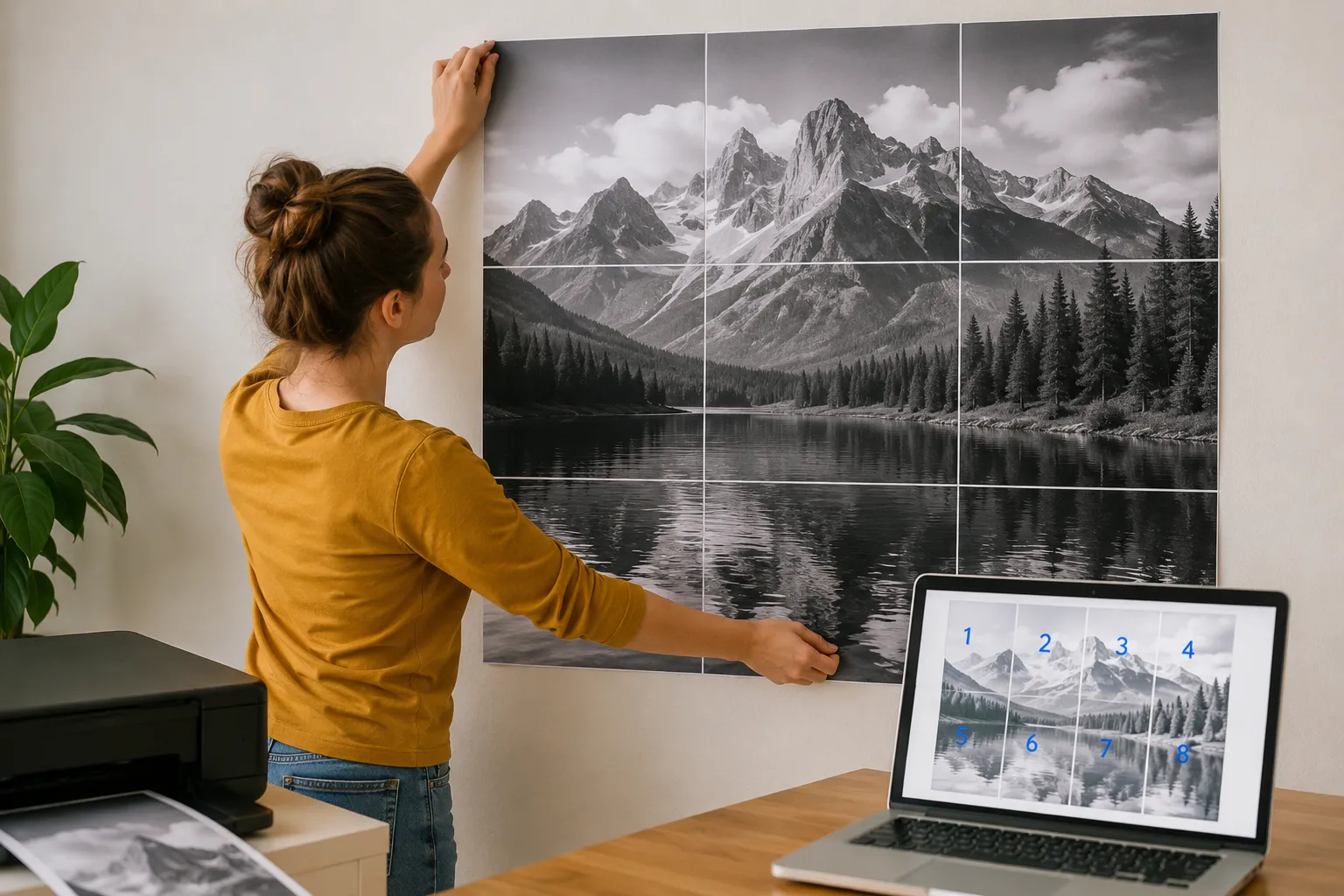
Ever wished you could blow up a photo, map, or design into a massive wall poster, but didn't want to pay a print shop or install heavy software? The Poster Printer / Image Tiler by SimpleClickLab makes it surprisingly easy. You upload a file, configure your grid, and walk away with a ready-to-print PDF — all without your image ever leaving your computer.
What Is the Poster Printer Tool?
The Poster Printer is a free, browser-based image tiling tool that splits a large image or PDF into multiple standard-sized pages — A4, A3, Letter, Legal, and more — so you can print them on any ordinary home or office printer and assemble them into one big poster.
Think of it as the digital equivalent of cutting a giant picture into puzzle pieces, printing each piece on a separate sheet, and taping them back together on your wall. The tool handles all the math and layout for you.
It works 100% client-side, meaning all processing happens locally on your device. Nothing is uploaded to a server, which makes it both fast and completely private.
Who Is It For?
This tool is useful for a surprisingly wide range of people:
- DIY decorators who want large wall art without paying for professional printing
- Teachers and educators creating oversized posters, timelines, or classroom displays
- Event organizers printing large signage, banners, or photo backdrops
- Designers and architects printing full-scale drafts or floor plans
- Gamers and hobbyists printing large tabletop maps, battle boards, or crafting templates
- Small business owners creating affordable window graphics or display signage
If you've ever needed something bigger than a single sheet of paper, this tool was made for you.
Key Features
🖨️ Multi-Page Tiling from Any Image or PDF
Upload a high-resolution JPEG, PNG, WebP, or a single-page PDF and the tool instantly splits it across a grid of standard paper pages. You choose how many columns and rows to use, or let the Auto Fit option calculate the ideal layout automatically.
📐 Flexible Paper Size Support
Choose from the most common international and regional paper formats: A4, A3, Letter, Legal, and more. Whether you're printing at home in Indonesia or in a US office, your paper size is covered.
🔲 Adjustable Overlap for Easy Assembly
One of the most practical features is the overlap setting. This creates a shared border area between adjacent pages, so when you trim and tape the sheets together, alignment becomes much easier. No more frustrating millimeter gaps between pages.
🎛️ DPI Control for Quality vs. Speed
You can set the output resolution (DPI — dots per inch) based on your needs:
- 72–96 DPI — fast rendering, small file size, great for quick drafts
- 150 DPI — a solid balance of quality and file size
- 300 DPI — professional print quality, sharp and clean results
📁 Download as PDF or ZIP
Once your layout is configured, you can export the result in two formats:
- A multi-page PDF ready to send straight to your printer
- A ZIP archive containing each individual page as a separate PNG file, useful if you want to print pages selectively or edit them further
🔒 100% Private — No Uploads, No Signup
This is perhaps the most important feature for many users. The entire process — file reading, tiling, rendering, and export — happens in your browser using local computation. Your images, PDFs, and personal files are never transmitted to any server. There's no account to create and no email required.
How to Use It: Step by Step
Step 1 — Upload Your File Go to simpleclicklab.com/tools/poster-printer and upload a high-resolution image or single-page PDF. The higher the resolution of your source file, the sharper your printed poster will look.
Step 2 — Configure the Layout Choose your paper size (e.g., A4 if you're printing at home), then set the number of columns and rows for your grid. For example, a 3×3 grid will produce a 9-page poster. Use Auto Fit if you're not sure — the tool will calculate a sensible layout based on your image dimensions.
Step 3 — Fine-Tune and Preview Adjust the margin and overlap values to your liking. The interactive preview lets you drag to reposition the image within the grid, so you can make sure nothing important is cut off at a page boundary.
Step 4 — Download and Print Hit the download button to get your multi-page PDF or ZIP file. Open the PDF in any PDF viewer or browser and print it at 100% scale (not "fit to page") so each sheet prints at the correct size.
Step 5 — Assemble Your Poster Trim the overlapping edges with scissors or a craft knife, then tape or glue the pages together. Use the overlap areas as guides for alignment, and you'll have a seamless large-format poster in minutes.
Tips for the Best Results
- Start with a high-resolution source file. A 300 DPI source image will always produce better results than upscaling a small photo.
- Use the overlap feature generously. Even a 10–15mm overlap makes assembly dramatically easier and more forgiving.
- Print at 100% scale. Make sure your printer settings say "actual size" or "100%" — never "fit to page" — or your grid will not align correctly.
- Use matte photo paper for richer colors and a more professional look.
- Test with a 2-page layout first before committing to a full 9-page or 12-page print run.
Why It Beats the Alternatives
| SimpleClickLab Poster Printer | Desktop Software (e.g., PosteRazor) | Print Shop | |
|---|---|---|---|
| Cost | Free | Free (but download required) | $10–$50+ per poster |
| Privacy | 100% local | Local | File shared with shop |
| Signup required | No | No | Sometimes |
| Works on mobile/tablet | Yes | No | N/A |
| Output formats | PDF + ZIP/PNG | Physical print | |
| Overlap support | Yes | Yes | N/A |
Frequently Asked Questions
Is it safe to use with personal or sensitive photos? Yes. Because processing is entirely local, your images are never sent anywhere. It's as private as opening a file in your own photo editor.
Can I tile a PDF? Yes. You can upload a single-page PDF — such as a map, flyer, or architectural drawing — and tile it exactly like an image.
What's the best paper size for large posters? A4 (or Letter in the US) is the most practical for home printing. If you have access to an A3 printer, using A3 pages means you need fewer sheets for the same poster size.
How many pages do I need for a 1-meter-wide poster? A standard A4 page is about 21 cm wide. For a 1-meter poster, you'd need roughly 5 columns. Pair that with 4–5 rows for a roughly 1m × 1.4m poster — around 20–25 pages total.
Final Thoughts
The SimpleClickLab Poster Printer fills a gap that many people don't even realize they have — the ability to print large without large-format hardware. It's fast, free, private, and requires nothing beyond a browser. Whether you're decorating a bedroom wall, prepping classroom materials, or building a game map, this tool delivers results that genuinely rival what you'd expect from dedicated software.
Try it now at simpleclicklab.com/tools/poster-printer — no signup, no waiting, just your image and a stack of A4 paper.